
Canvas Grouping & Read-Only Protection: Keep Large Projects Organized and Safe
In large canvas projects with hundreds of nodes, how to quickly organize and prevent mistakes? Zhishiyun's grouping and read-only protection have you covered.
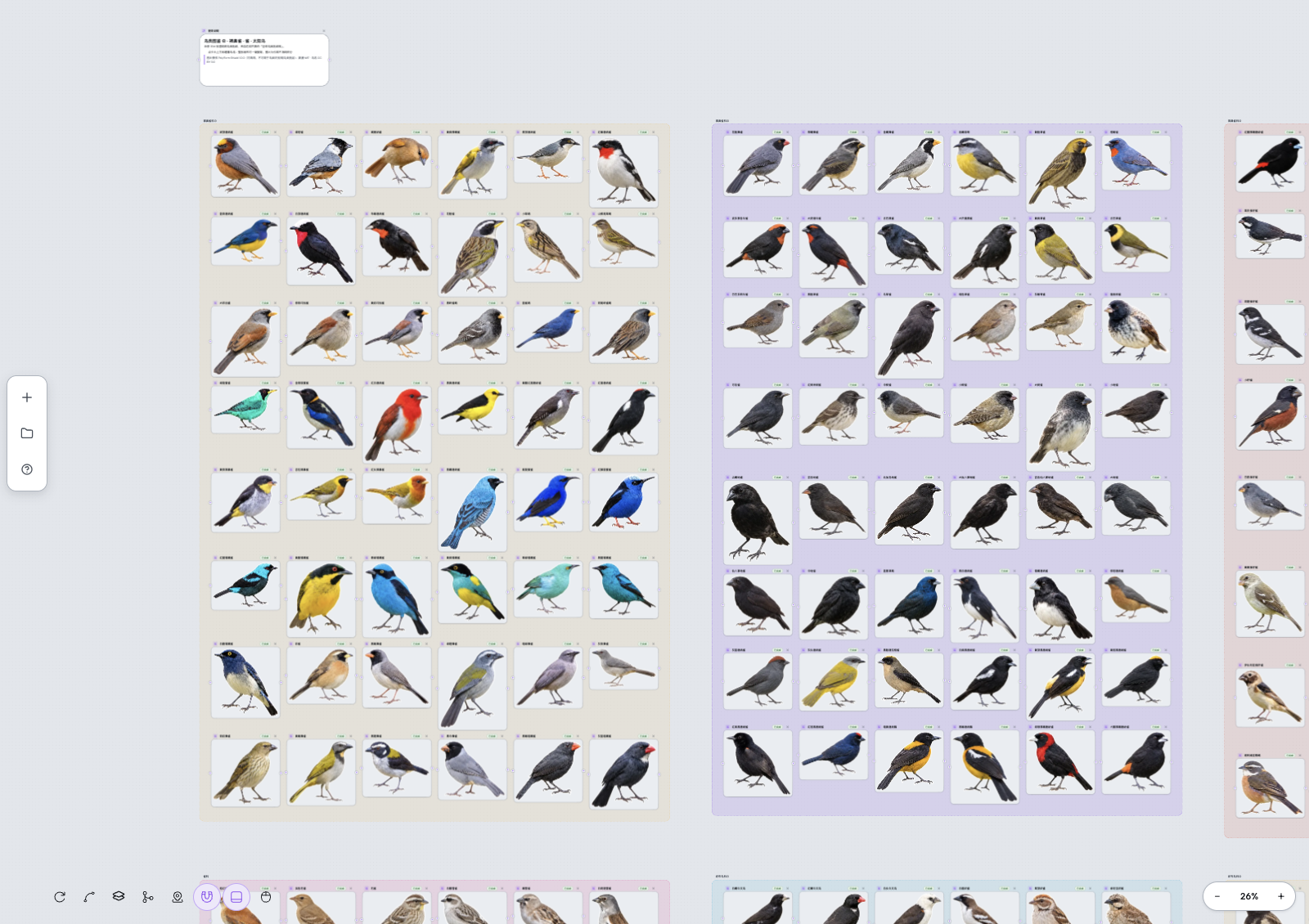
Start with a familiar bottleneck
When a canvas project contains a large number of assets (e.g., thousands of images), nodes become cluttered and hard to manage. Also, if the canvas is deleted by someone else, continuing to edit leads to save failures and potential unintended modifications.
Keep the workflow on one canvas
Zhishiyun canvas offers grouping with 10 background colors, 7 preset labels, collapse/expand, rename, and four arrange modes (grid, pack, row, column) for tidy organization. If the canvas is deleted, it automatically switches to read-only mode, disabling all editing and prompting users to 'Save As New Canvas' to prevent data loss.
Grouping: Keep Your Assets Organized
In large projects, grouping related assets (characters, scenes, props) is key to efficient management. Zhishiyun canvas supports grouping multiple nodes, with 10 background colors and 7 preset labels (e.g., 'To Review', 'Final', 'Character', 'Scene') for quick visual identification.
Groups can be collapsed to compact cards to save space, and double-clicking the title allows renaming. Additionally, multi-selected nodes can be arranged using grid, pack, row, or column modes for one-click tidy layouts.
Read-Only Protection: Prevent Accidental Edits and Data Loss
When a canvas is deleted, continuing to edit would cause save 404 errors. Zhishiyun detects this and automatically switches the canvas to read-only mode: all nodes and edges become non-interactive, top-bar write actions (global ratio, share, Agent) are disabled, but pan and zoom remain available for viewing.
A clear banner appears at the top explaining the deletion and offering a 'Save As New Canvas' button. Clicking it saves the current content as a new canvas, preventing data loss and allowing continued work.
A simple way to begin
- Select multiple asset nodes
Drag a selection box on the canvas, or use partial selection mode to select multiple nodes you want to group.
- Create a group and customize it
Click the group button to create a container. Choose a background color (10 options), add preset labels (e.g., 'To Review', 'Character'), and double-click the title to rename.
- Use arrange modes to tidy layout
Select nodes inside a group or multiple nodes, then choose grid, pack, row, or column arrangement from the toolbar to auto-align.
- Collapse groups to save space
Click the collapse button on the group header to shrink members into a compact card, making it easier to browse the overall canvas structure.
- Save as new canvas when deleted
If the canvas is deleted, a banner appears. Click 'Save As New Canvas' to save the current content as a new project and continue without losing data.