
One-Click Prompt Optimization: Make AI Understand Your Vision and Avoid Off-Target Generations
Select an image node, click 'Optimize Prompt', and AI rewrites your prompt based on your creation mode, duration, and resolution, preserving storyboard details with preview before applying.
Start with a familiar bottleneck
When writing prompts on the canvas, users often face frustrating issues: text copied from WeChat or web pages appears in the prompt box but generation reports an empty prompt; unstructured prompts cause AI to misinterpret the task—like judging a video request as an image, mismatching duration, or writing wrong quality parameters; long prompts stuffed with repetitive adjectives and negative requirements actually interfere with generation.
Keep the workflow on one canvas
Zhishiyun adds 'One-Click Prompt Optimization' on canvas image nodes: the backend calls an LLM to restructure the prompt into structured JSON, then code renders the final template. The system treats the mode (video/image), duration, and resolution you selected in the UI as authoritative; the LLM only refines the body and negative list. Quality suffixes are generated per resolution, and negative requirements are compressed into one sentence. The optimized result is previewed in a dialog before applying—never modifying the original prompt until you confirm.
Two-Stage Optimization: LLM Outputs JSON, Code Renders Template
Traditional approaches let the LLM output the entire prompt directly, which often miswrites mode, duration, and quality—parameters that can be programmatically enforced. Zhishiyun splits this into two stages: the LLM outputs only structured JSON (task type, duration, body, negatives), and code renders the final template.
This way, the mode (video/image) and duration you selected in the UI are authoritative; the LLM's judgment is only a reference, and conflicts resolve in favor of the UI with a warning. Quality suffixes are generated based on the current model and resolution, not hardcoded as '4K Ultra HD'; negative requirements are extracted into an array and compressed into a single 'no ... throughout' sentence, avoiding long lists and repetition.
Summary and Storyboard Styles for Different Needs
Optimization offers two styles: 'Summary' and 'Preserve Storyboard'. Summary style compresses each time segment to 2-3 key actions, merging repeated touchpoints—ideal for quick generation. Preserve Storyboard style keeps the main action chain and key impact points per segment without over-merging, suitable for complex prompts requiring fine-grained control.
Both styles remove repetitive adjectives and synonymous actions, and control body length: complex storyboards 400-700 characters for summary, 600-1000 for storyboard; simpler prompts are shorter. Image mode expands into a concrete shootable scene with body length 100-250 characters.
Preview Before Applying—Never Silently Change Your Original
The optimized result never directly overwrites your prompt. After clicking 'Optimize Prompt', a dialog shows the optimized body, task type, duration, and warnings, allowing you to compare original and optimized text and choose 'Apply' or 'Discard'.
Only clicking Apply writes the optimized prompt into the node's source; closing the dialog or discarding leaves the original untouched. If optimization fails (e.g., timeout or invalid JSON), the system keeps your original prompt and offers a retry path, so you never lose what you've written.
A simple way to begin
- Select an image node
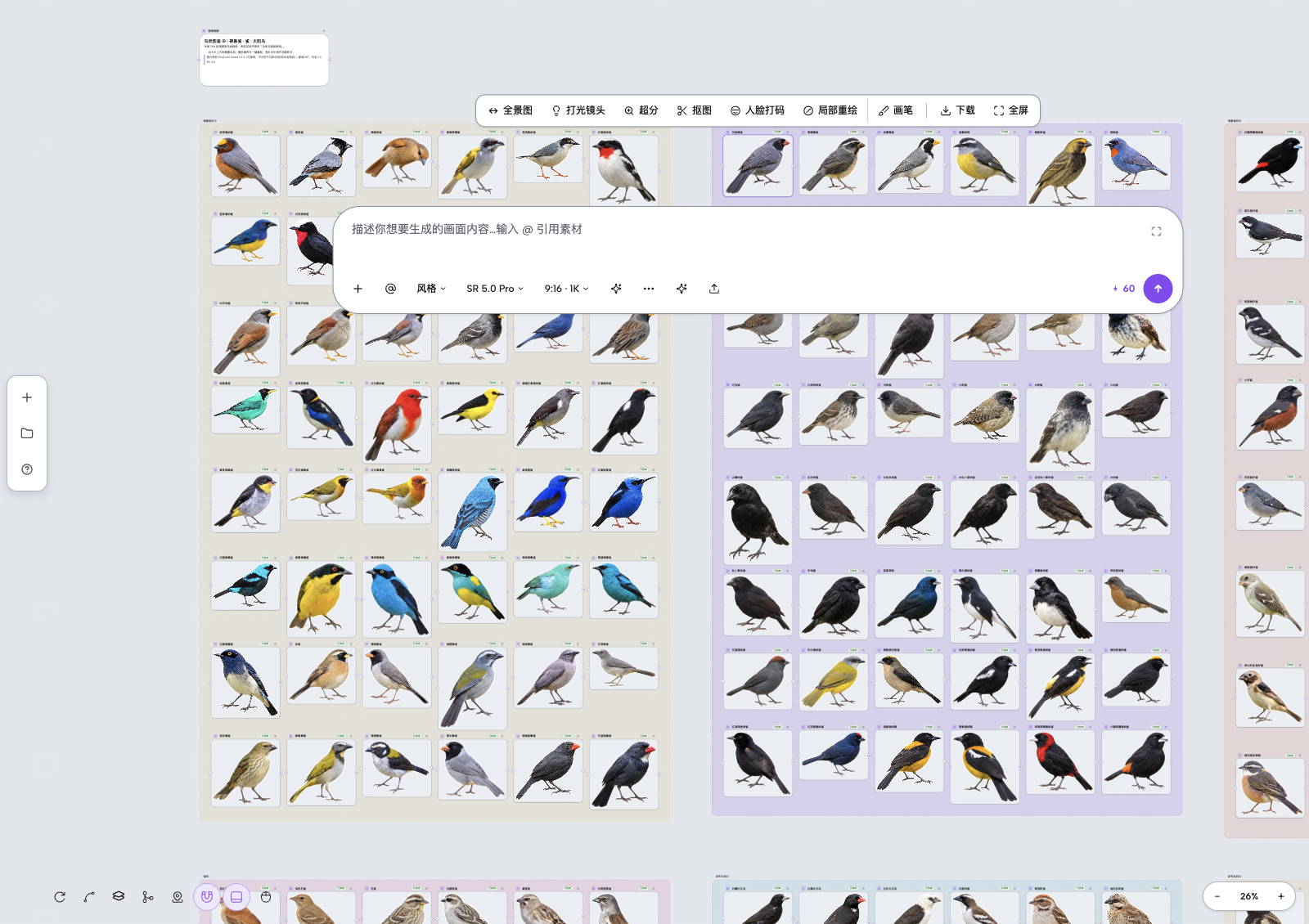
Click an image node on the canvas; the image toolbar appears above and the prompt box below.
- Enter or paste your prompt
Type a description or paste text copied from WeChat or web pages. Pasting normalizes to plain text, so inline-tag content is not lost.
- Click 'Optimize Prompt'
Find the 'Optimize Prompt' button in the prompt box toolbar and click it; the system calls AI for structured rewriting.
- Preview the optimized result
The dialog shows the optimized body, task type, duration, and warnings; you can switch between summary/storyboard styles and compare with the original.
- Apply or discard
Click 'Apply' to write the optimized prompt into the node; click 'Discard' or close the dialog to keep the original unchanged.