
Credits Detail Page: See Where Every Credit Comes From and Goes
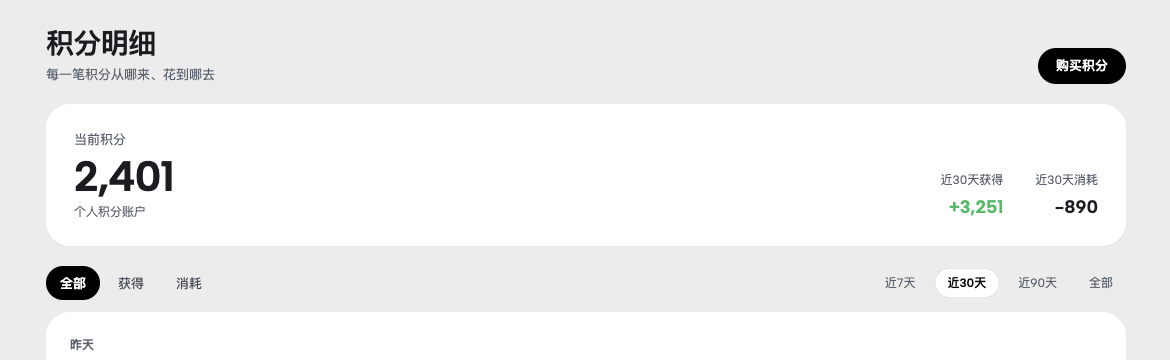
The Credits Detail page lists every credit transaction with its source and destination, supports filtering by time and direction, and shows a breakdown of purchased, membership, and bonus credits so your balance is always clear.
Start with a familiar bottleneck
Users often wonder: I topped up credits, but why doesn't the balance add up? Bonus credits and purchased credits are mixed together, making it hard to tell what's still usable or about to expire. And finding a specific spending record means digging through endless logs.
Keep the workflow on one canvas
Zhishiyun introduces a Credits Detail page that lists every credit transaction with its source and destination, supports filtering by time and direction, and shows a breakdown of purchased, membership, and bonus credits so your balance is always clear.
Credit breakdown at a glance
A new "Credit Breakdown" card at the top of the page splits your current balance into three rows: Purchased Credits, Membership Credits, and Bonus Credits, each with a color indicator and the exact amount. For team accounts, it shows the team's shared balance.
Legacy top-ups or historical adjustments are not shown as a separate bucket; they are merged into the total and explained in a single line, so paid users' money is never labeled as unknown.
Every transaction is traceable
The transaction list shows each credit gain or spend in reverse chronological order, with filters for All / Earned / Spent and time ranges of 7 days, 30 days, 90 days, or All.
Each entry carries a source tag (e.g., order, membership grant, bonus), making it easy to verify which top-up or purchase caused the change.
Proactive warning when balance doesn't match
If the sum of the credit breakdown doesn't equal the current balance, the page shows a warning: "Credit breakdown doesn't match total balance. Please retry later or contact admin." instead of drawing a fake breakdown.
This fail-loud design ensures the breakdown data you see is trustworthy, preventing misunderstandings from inconsistent data.
A simple way to begin
- Open the Credits Detail page
Click the "Credits Detail" button in the points popover at the top of the Zhishiyun page to open the dedicated credits detail page (#/credits-detail).
- Review your credit breakdown
The "Credit Breakdown" card at the top shows your current balance, split into Purchased, Membership, and Bonus credits; team accounts see the team's shared balance.
- Filter transactions
Use the All / Earned / Spent tabs to switch between income and expense, and use the time range (7 days / 30 days / 90 days / All) to narrow down the list and verify each credit change.