
Zhishiyun Canvas Audio Node: Generate Voiceovers and Sound Effects from Reference Audio
Upload or reference audio in the canvas, generate voiceovers, sound effects, or background music from text prompts, with sample rate selection and per-second billing.
Start with a familiar bottleneck
In video creation, voiceovers, sound effects, and background music often require separate tools or asset libraries, causing time-consuming context switching and difficulty in precisely controlling duration and style.
Keep the workflow on one canvas
The Zhishiyun canvas introduces an audio node that lets you upload reference audio or link from upstream nodes, then generate voiceovers, sound effects, or background music from text descriptions. The generation panel offers model selection (Seed Audio 1.0) and sample rate (44.1kHz/48kHz), with billing based on actual duration, integrating audio creation into your existing video workflow.
Create audio directly in the canvas
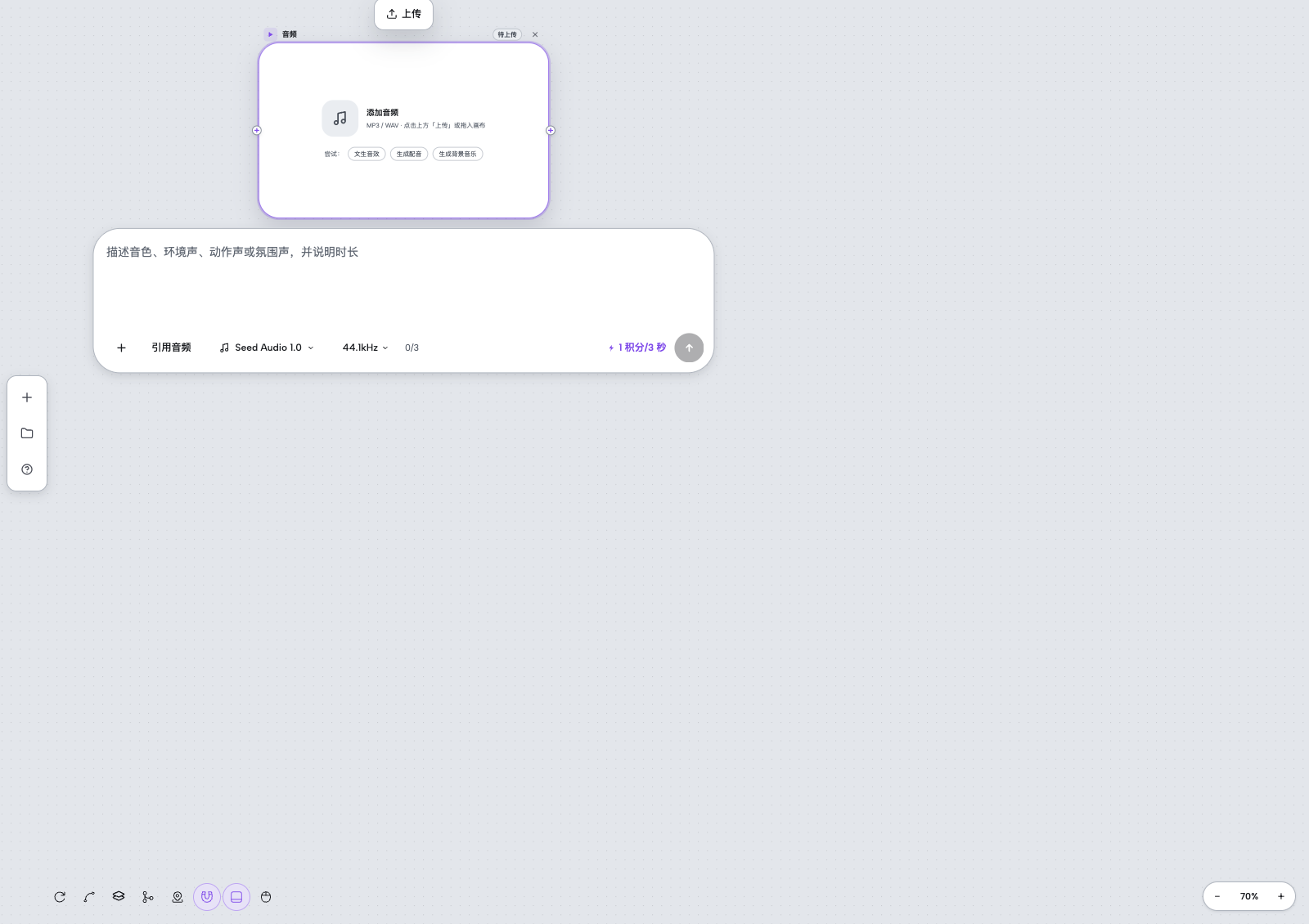
In the Zhishiyun canvas, you can add an audio node and upload reference audio by clicking the 'Upload' button above or dragging in an audio file (MP3/WAV). The node displays a real waveform and supports playback preview.
Besides manual upload, you can also link audio from an upstream node to the current audio node, automatically using it as reference audio without re-uploading. The system merges manual and upstream references, supporting up to 3 reference segments; exceeding this limit shows a reason and disables generation.
Generate audio from text descriptions
In the audio generation panel, enter a prompt describing the timbre, ambient sound, action sound, or atmosphere, and specify the duration. You can select the model (Seed Audio 1.0) and sample rate (44.1kHz or 48kHz), then click generate.
Generation runs asynchronously in the background, and the frontend polls for results. Once complete, the audio node displays a real waveform for playback. Billing is based on actual generated duration, and the panel shows an estimated credit cost (e.g., 1 credit per 3 seconds).
A simple way to begin
- Add an audio node
In the canvas, click to add an audio node. The node shows an upload area and try buttons (text-to-sound-effect, generate voiceover, generate background music).
- Upload or reference audio
Click the upload button in the node toolbar to select an MP3/WAV file, or link audio from an upstream node; the system automatically adds it to the reference pool.
- Enter a prompt and set parameters
In the generation panel, describe the audio content you want, select the model (Seed Audio 1.0) and sample rate (44.1kHz/48kHz), and confirm the duration.
- Generate and preview
Click the generate button. The system calls the audio model in the background; once complete, the node shows a real waveform for playback.